User Guide#
Welcome to Elm!#
Elm is a high-capacity, cold-storage data service designed to meet the massive storage needs of the Stanford research community. With the ability to store over 200 Petabytes, Elm is designed for large volumes of data that need to be stored cost-effectively over long periods, but accessed infrequently.
If you have significant amounts of data that require long-term, inexpensive cold storage, Elm is an ideal solution.
Accessibility#
Report accessibility issues#
Stanford is committed to providing an accessible digital environment. If you experience accessibility barriers on this site, please visit Digital Accessibility at Stanford.
Accessing Elm storage#
Elm Service Accounts Manager#
New Elm users need to sign in at least once to the Elm Service Accounts Manager to create an Access Key for data transfers using the S3 protocol. The same page lets you change, turn off or delete your keys later.
- Low or Moderate Risk: https://campus.elm.stanford.edu/
- High Risk (PHI & Non-PHI): https://campus.elm-hr.stanford.edu/
See S3 Client Setup for a walkthrough.
MinIO Console#
The MinIO Console features a bucket browser and supports basic file transfers over HTTPS, making it convenient for managing smaller files.
For the campus instance, see the Elm Workgroup & URL Helper
S3 Endpoint#
Example Use Case: Using the AWS CLI to transfer data between Elm and your computer.#
Authorized Elm users can use S3-compatible tools to access their data. Examples of such tools, already installed on Sherlock, include the AWS CLI (aws), rclone, and s5cmd.
Disk space#
Elm quotas are measured in allocations of 1 TiB. Your quota is a hard limit that you set, not something that is determined by how much data you upload to Elm, so you'll need to allocate storage space before you upload to Elm.
NOTE: Elm is NOT backed up. While Elm has redundancy features like erasure coding, it’s still located on campus. This means Elm should be considered a single copy of your data. If there’s a big disaster (think earthquakes), there’s a chance you might lose access. For extra-important data, it’s a good idea to keep a second copy on another system.
Tracking usage#
Each bucket has a usage dashboard. It shows the bucket's quota, how much of the quota is in use, the sizes of its objects, and how its volume, object count and traffic have changed over time. Members of your bucket's workgroup can view it after signing in with their SUNet ID:
-
Moderate Risk:
https://srcc-lookout.stanford.edu/elm/campus/<bucket>, for examplehttps://srcc-lookout.stanford.edu/elm/campus/my-lab-data -
High Risk:
https://srcc-lookout.stanford.edu/elm-hr/campus/<bucket>, for examplehttps://srcc-lookout.stanford.edu/elm-hr/campus/my-lab-data
The Elm Workgroup & URL Helper also gives the link for your bucket.
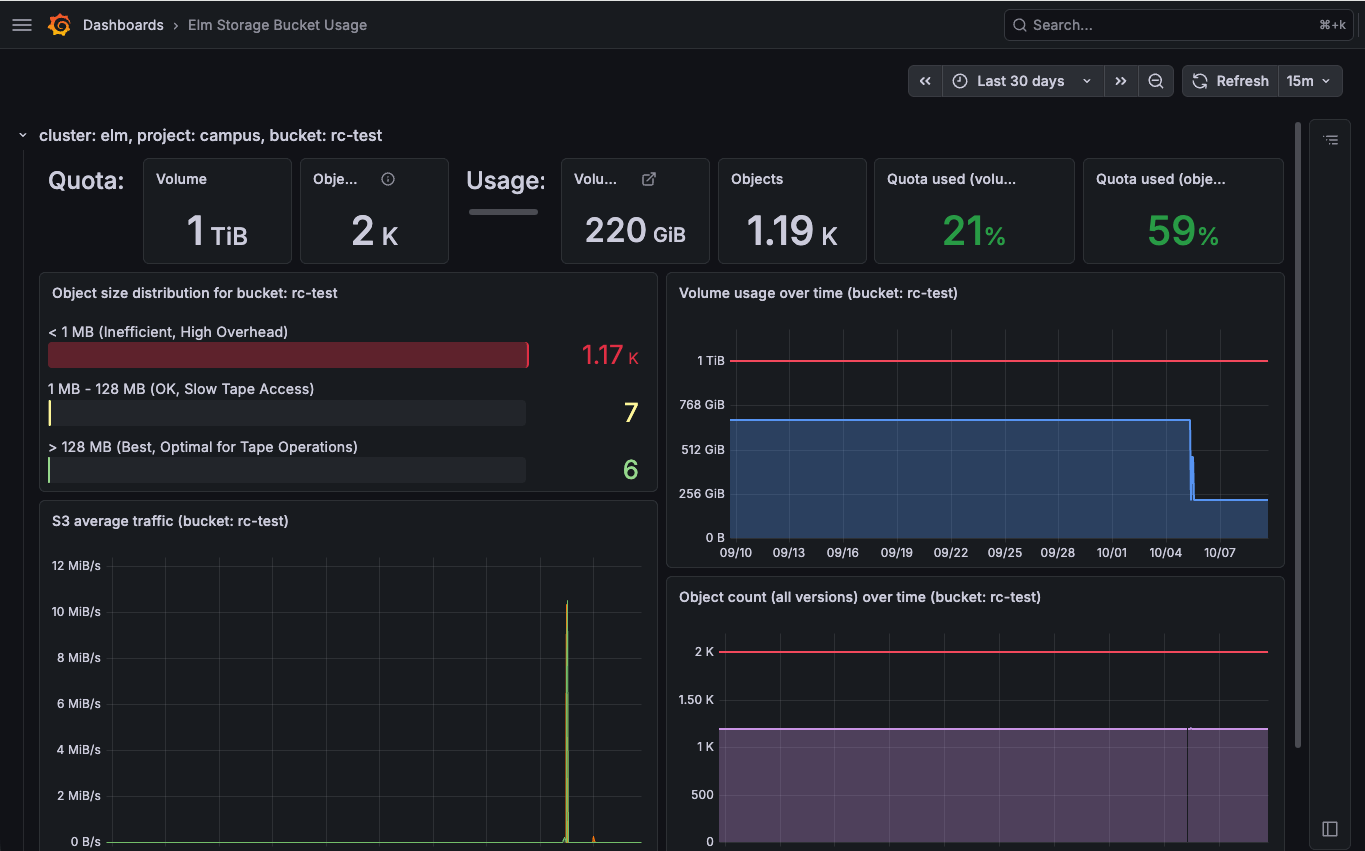
The object size panel shows how well your data suits tape. Many objects under 1 MB are slow and costly to retrieve from tape, which is why we recommend packing small files before you upload them.
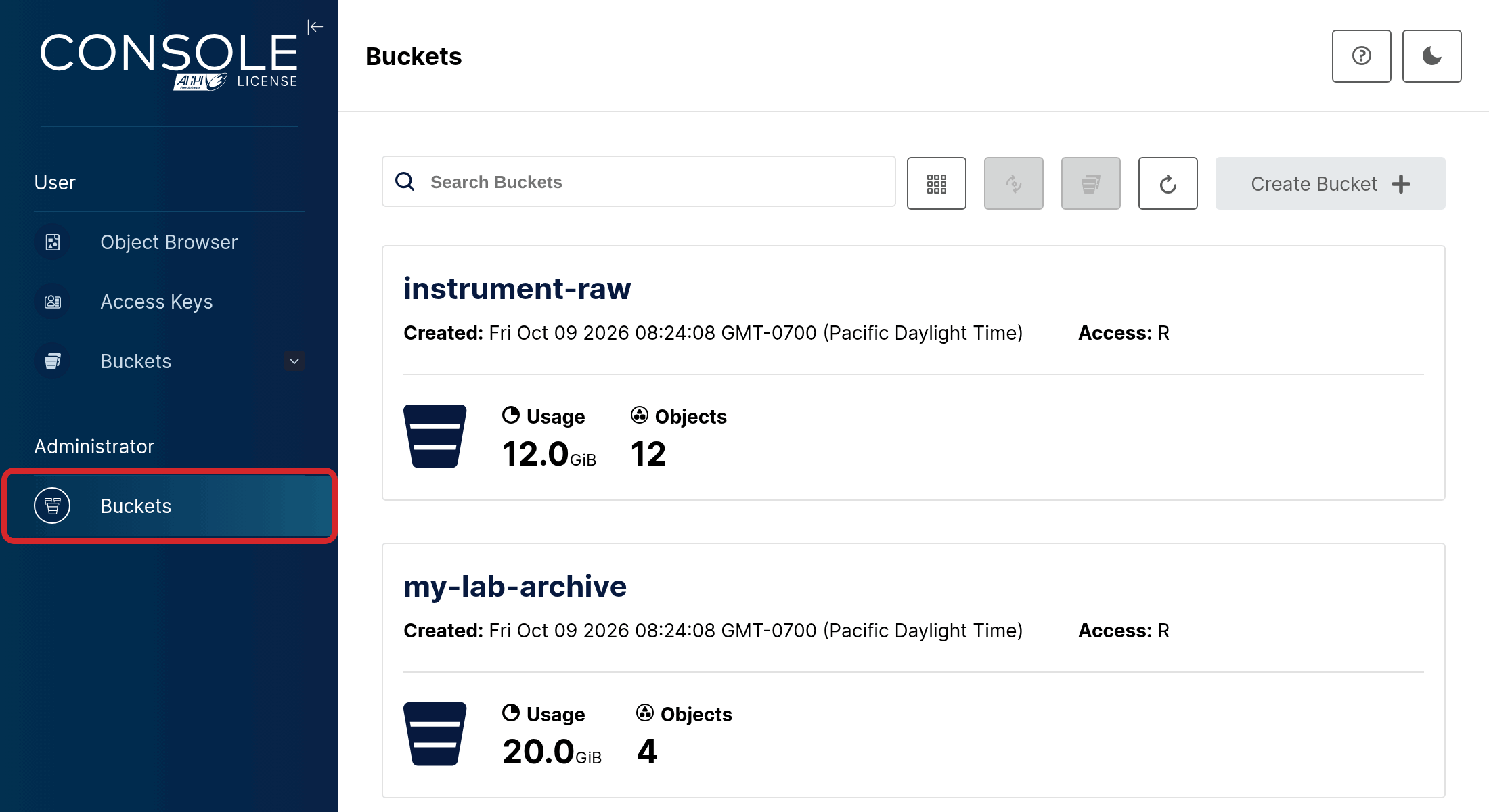
The MinIO Console also shows each bucket's usage. To access it, head to the appropriate MinIO Console for your bucket, depending on your data risk classification:
-
Low or Moderate Risk: https://campus.elm.stanford.edu:9001/
-
High Risk (PHI & Non-PHI): https://campus.elm-hr.stanford.edu:9001/
Once you're logged into the console, click on Administrator -> Buckets to see your bucket's usage (volume) and number of objects stored.
Rate Limiting#
Elm limits how many transfers each user can run at the same time. Each user may have up to 24 uploads and 24 downloads in progress at once. A request beyond that is turned away with HTTP status 503, Service Unavailable, which S3 clients treat as a signal to slow down and try again later.
The limits were chosen so that the default settings of Globus, rclone and the AWS CLI stay within them. You are most likely to reach them if you raise a tool's concurrency settings, or if you run several uploads or downloads at the same time. Everything you run counts toward the same limit, so two copies of rclone each running 16 uploads add up to 32.
Signs you are over the limit#
You may see only an occasional error, even when many requests are being turned away. S3 clients retry quietly in the background, so the first sign is often a transfer that runs slower than expected. With rclone the visible errors look like this:
StatusCode: 503 ... api error ServiceUnavailable: Service Unavailable
failed to get rate limit token, retry quota exceeded
If you see these, lower your concurrency settings as described below. Running at or above the limit is not faster: the extra requests are refused and have to be sent again.
Tuning rclone#
The number of uploads rclone runs at once is roughly --transfers multiplied by --s3-upload-concurrency. --transfers is how many files are sent in parallel, and --s3-upload-concurrency is how many 5 GiB parts of a single large file are sent in parallel. Keep the product at or below 24.
Which setting to raise depends on your files:
- If most of your files are smaller than 5 GiB, each file is sent in one piece. Raise
--transfersto send more files at once. - If most of your files are larger than 5 GiB, raise
--s3-upload-concurrencyto send more parts of each file at once.
When rclone uploads files from a local disk, it reads each part straight from the file, so it uses little memory whatever settings you choose. It holds parts in memory only when it cannot read the source as a local file, for example when you pipe data into rclone rcat or copy from another remote. Then it can use up to --transfers x --s3-upload-concurrency x 5 GiB of memory: 40 GiB for --transfers 4 --s3-upload-concurrency 2, and 80 GiB for rclone's defaults of 4 and 4. On a laptop or another computer with limited memory, lower both in that case, for example --transfers 2 --s3-upload-concurrency 1, which uses up to 10 GiB.
We tested several settings by uploading about 1 TiB of .tar files, a mix of files under 1 GiB and files of several hundred GiB:
--transfers | --s3-upload-concurrency | uploads at once | time | errors |
|---|---|---|---|---|
| 4 | 2 | 8 | 2h24m | none |
| 8 | 2 | 10 | 1h49m | none |
| 4 | 6 | 24 | 1h38m | none |
| 8 | 8 | 24, at the limit | 1h34m | 158 refused, 32 canceled |
The uploads at once column is the most we saw in progress at the same moment, which can be lower than --transfers x --s3-upload-concurrency. A file under 5 GiB is sent as a single part, so the run with --transfers 8 --s3-upload-concurrency 2 peaked at 10 uploads rather than 16.
The last run asked for 64 uploads at once and finished only a few minutes ahead of the fastest run that stayed within the limit, at the cost of almost 200 failed requests. A setting such as --transfers 4 --s3-upload-concurrency 2 is a good starting point. Increase it from there while watching for errors.
Tuning the AWS CLI#
The AWS CLI sends up to 10 requests at once by default. If you raise it, keep it at or below 24:
aws configure --profile elm set s3.max_concurrent_requests 20
Email notification for system maintenance and issues#
Please note that your email will be subscribed to the mailing list elm-announce (very low traffic for official announcements such as planned maintenance). Your group members will also be automatically subscribed. For more information, please see the following page:
Getting data in and out of Elm#
Elm is a stand-alone storage system that provides several methods of access.
- S3 Protocol
- Popular for use with tools like
aws,rclone,restic, and others.
- Popular for use with tools like
- MinIO Console
- A web-based user interface that allows for basic data management tasks.
- Globus Endpoint
- A powerful data transfer tool that can be used for both simple and large scale transfers.
Service maintenance#
The first Tuesday of each month, from 8 a.m. to 2 p.m., is designated for scheduled maintenance. Clients will be notified by email at elm-announce@lists.stanford.edu two weeks prior to any scheduled work that may impact system availability, including the monthly maintenance.
Support and feedback#
Your feedback is very important. Please tell us about any issues you run into and successes you have. The best way to contact us is by email to SRC Support.
Support limitations#
Stanford Research Computing will resolve Elm-specific hardware and file-system problems. Stanford Research Computing is not able to address firewall, network, remote connectivity, or desktop issues. For those issues, you can get help at HelpSU.
SRCC Slack workspace#
Stanford Research Computing has a workspace on the Stanford Slack Grid! This allows us to communicate system-wide announcements and provides our users a platform to connect and discuss directly, ask questions, recommend best practices, or share tips with the community.
In particular, we encourage you to join these two channels:
- #elm-announce, for announcements related to Elm storage (read-only)
- #elm-users, for discussions among the community of Elm storage users
Please note that while SRC staff will monitor these channels, they are not intended as official support channels, and the recommended way to get support is still to email us at SRC Support.
For more details about the SRCC Slack Workspace and instructions on how to join this workspace and its channels, please see: