Getting Started | Campus#
Start Here!#
-
Interested in Elm, but not a user yet? Start with the "Prerequisites" section below.
-
Just got an account? Start with the "Accessing your Elm Bucket" section
-
Need help choosing a tool to transfer data? Start with the "Getting Data In and Out of Elm" Section
Elm is archival storage - not a substitute for data backup
Use Oak for active work (frequent access, running simulations)
To protect Oak data against accidental loss, use Oak's managed backup: https://docs.oak.stanford.edu/backups/
Use Elm for large-scale archival - finished projects, completed datasets, long-term retention, and compliance. Data stored in Elm should be rarely accessed.
Prerequisites#
To start using Elm, you will need:
-
an active SUNet ID,
What is a SUNet ID?
A SUNet ID is a unique 3-8 character account name that identifies you as a member of the Stanford community, with access to the Stanford University Network of computing resources and services. Not to be confused with University ID (a 8-digit number that appears on your Stanford ID Card), your SUNet ID is a permanent and visible part of your Stanford identity and often appears in your Stanford email address (eg. sunetid@stanford.edu).
SUNet IDs are not managed by Research Computing. For more information, see https://accounts.stanford.edu/
SUNet ID service levels and external collaborators
Base-level service is sufficient for Elm accounts. External collaborators, or users without a SUNet ID, can be sponsored by a PI a get a sponsored SUNet ID at no cost. Please see the sponsorship page for more information.
-
Belong to an Elm Stanford Workgroup, as a member or as an administrator. This grants access to an Elm instance or to an Elm instance bucket.
- Familiarity with the concepts and terms used throughout our documentation
Optional, but Highly Recommended#
- A Sherlock Account
- Some familiarity with Unix/Linux command-line environments
- Familiarity with the S3 API
How much does Elm cost?#
Please visit the University IT rates page for the most up-to-date information on the cost of Elm storage.
Order a new Elm bucket or make a change to an existing one#
Please see our orders page for more information.
Buckets and Naming Conventions#
When you create a bucket on Elm’s Campus partition, you must choose a bucket name that follows specific guidelines:
- Between 3 - 63 characters
- Only lowercase letters, numbers, and hyphens (
-) are allowed. - No spaces, periods, or special characters.
- Bucket names must not end with the suffix -s3alias. This suffix is reserved for access point alias names.
- Example:
sunetid,lab123-backup, etc.
Accessing your Elm Bucket#
Because Elm is designed for infrequently accessed data, it's reasonable to expect both new and exiting users may need a refresher from time to time on how to access their storage bucket.
All you need to provide is the name of the storage bucket you'd like to access and the highest possible risk classification of data stored within it.
Elm Workgroup & URL Helper
Getting Data In and Out of Elm#
You can manage your Elm bucket in three ways:
| Tool | Description | Links | Pros/Cons |
|---|---|---|---|
| Elm Service Accounts Manager | A web-based page for creating and managing the access keys your S3 tools use. | - Moderate Risk - High Risk | Pros: • Create, change, turn off and delete access keys. • Ready-made settings for common S3 tools. Cons: • Does not browse or transfer data. |
| MinIO Console | A web-based interface to browse and manage objects. | - Moderate Risk - High Risk | Pros: • Easily accessible from any browser. • No extra software needed. Cons: • May have limited advanced functionality. • Upload volume and speed may be limited compared to S3-compatible tools |
| S3 Endpoint | Connect using S3-compatible tools or the AWS CLI (not a web-based interface). | - Moderate Risk - High Risk | Pros: • Flexible and can integrate with automation tools. • Potentially faster transfers. Cons: • Requires CLI knowledge or additional software. |
The first step to gaining access to an Elm instance or to an Elm instance bucket is to be added to one of the Elm Stanford Workgroups.
To determine the workgroups associated with your bucket, please refer to the Elm Workgroup & URL Helper tool above.
If you are a student and need access to a dedicated Elm instance then your PIs will need to have added your SUNet ID to the primary workgroup, elm:p-<project>, and optionally to have added you to the uploader or editor workgroups to give you permission beyond reading buckets.
Signing In#
Once you are a member or administrator of one or more of these workgroups you may sign in to the Elm Service Accounts Manager and the MinIO Console. Both use your SUNet ID.
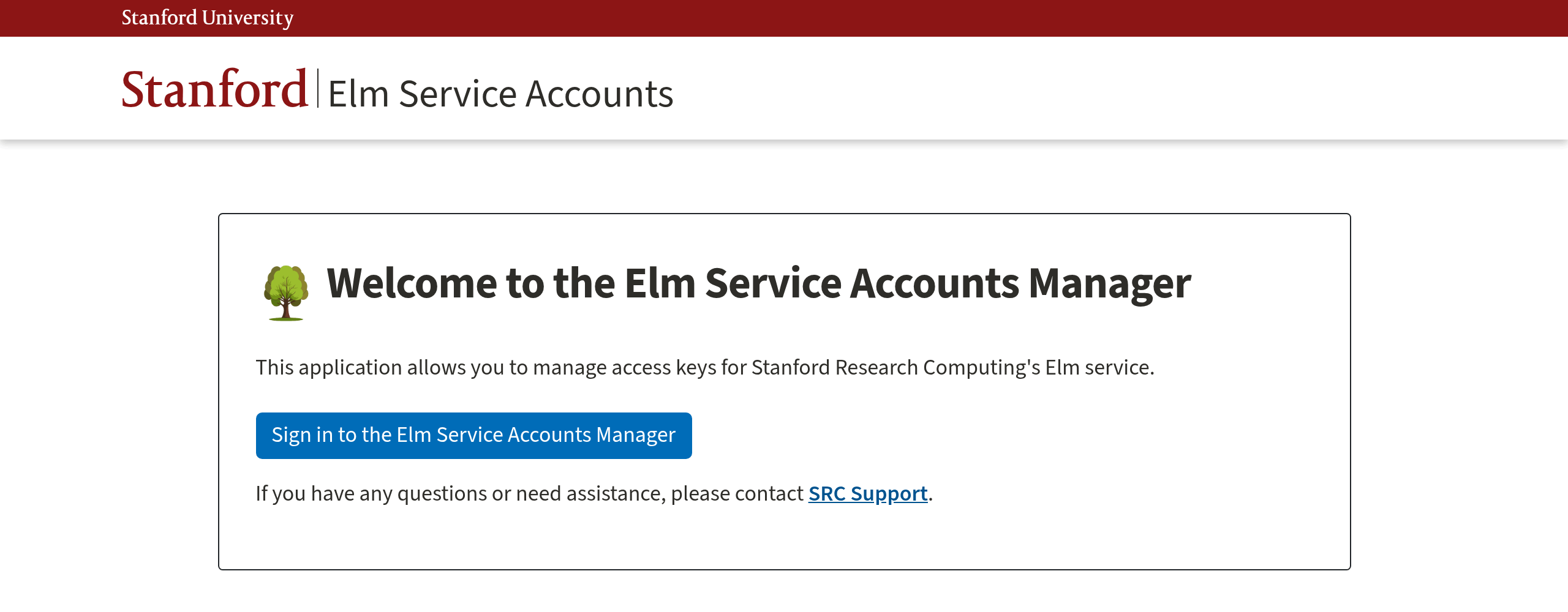
The Elm Service Accounts Manager opens with a welcome page. Click the Sign in to the Elm Service Accounts Manager button:
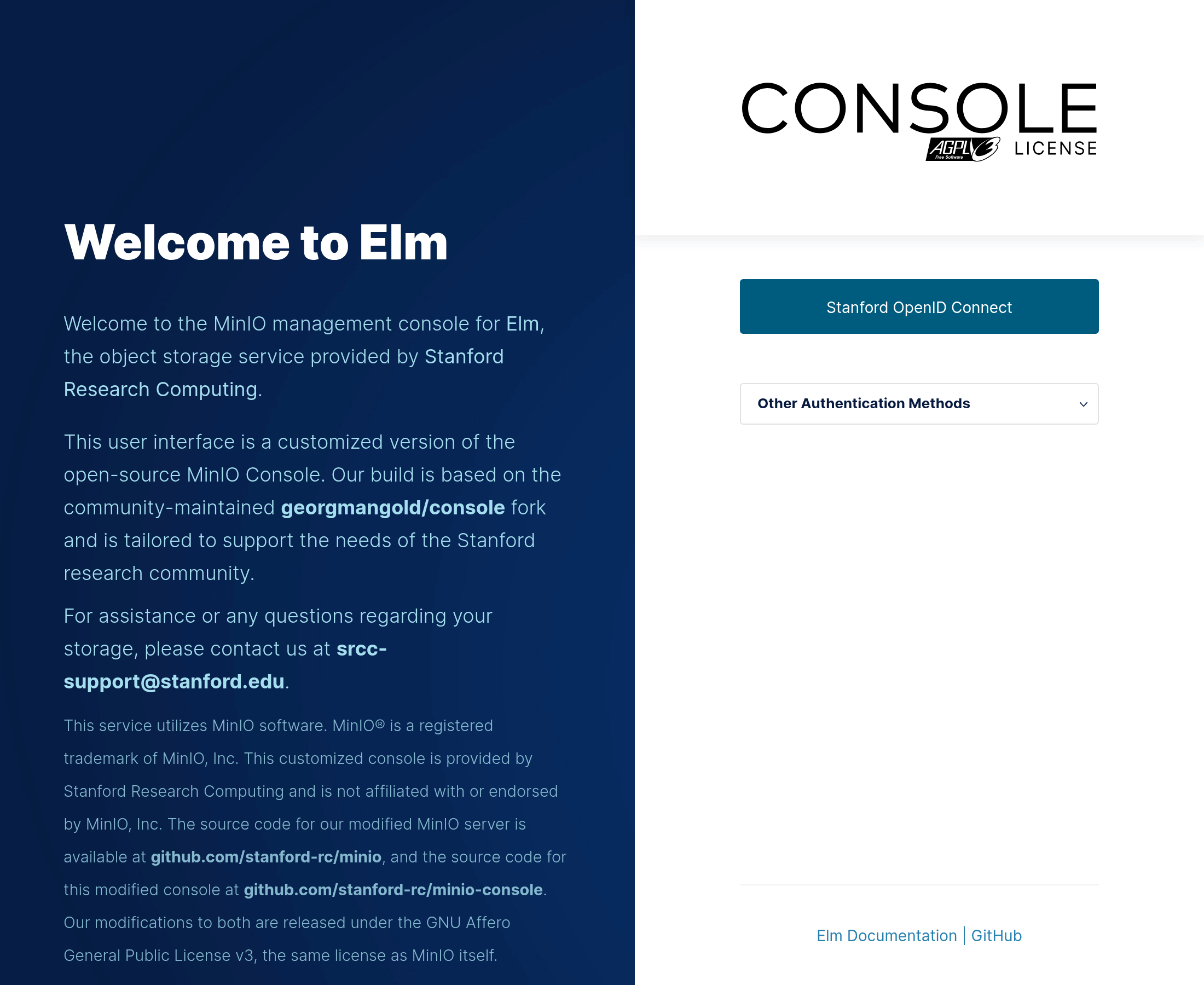
The MinIO Console opens with a login page that offers a Stanford OpenID Connect button:
Either button redirects you to the Stanford OIDC Service. The first time you visit this page you will be asked to confirm the release of your elm:* entitlements (Stanford Workgroups) to the Stanford Research Computing Elm MinIO Service.
- You may select "Ask me again at next login", in which case you will be prompted to release your entitlements to the Elm service the next time you sign in.
- You may select "Ask me again if information to be provided to this service changes", in which case you will not be prompted again unless either something changes on the Elm side or your list of Elm entitlements changes.
- You may select "Do not ask me again" in which case you're approving to always release your entitlement details to all services.
After selecting your option, click the Accept button to continue.

Once you click the Accept button you should be directed back to Elm and signed in. If instead you see a page headed An Error Occurred that begins Your login was successful, but you do not have the required permissions to access this service, you are not yet a member of the required workgroups for that Elm instance. For this or any other sign-in problem, please contact SRC Support.
Signing in from the MinIO Console
If you sign in from the MinIO Console at port 9001, you will arrive at the Elm Service Accounts Manager rather than back in the MinIO Console. Use the MinIO Console link at the top right of the page to continue to the MinIO Console. It opens in a new tab.
In the MinIO Console you will see the buckets you have access to. From here you can browse them, view (but not modify) their details, and sign out:
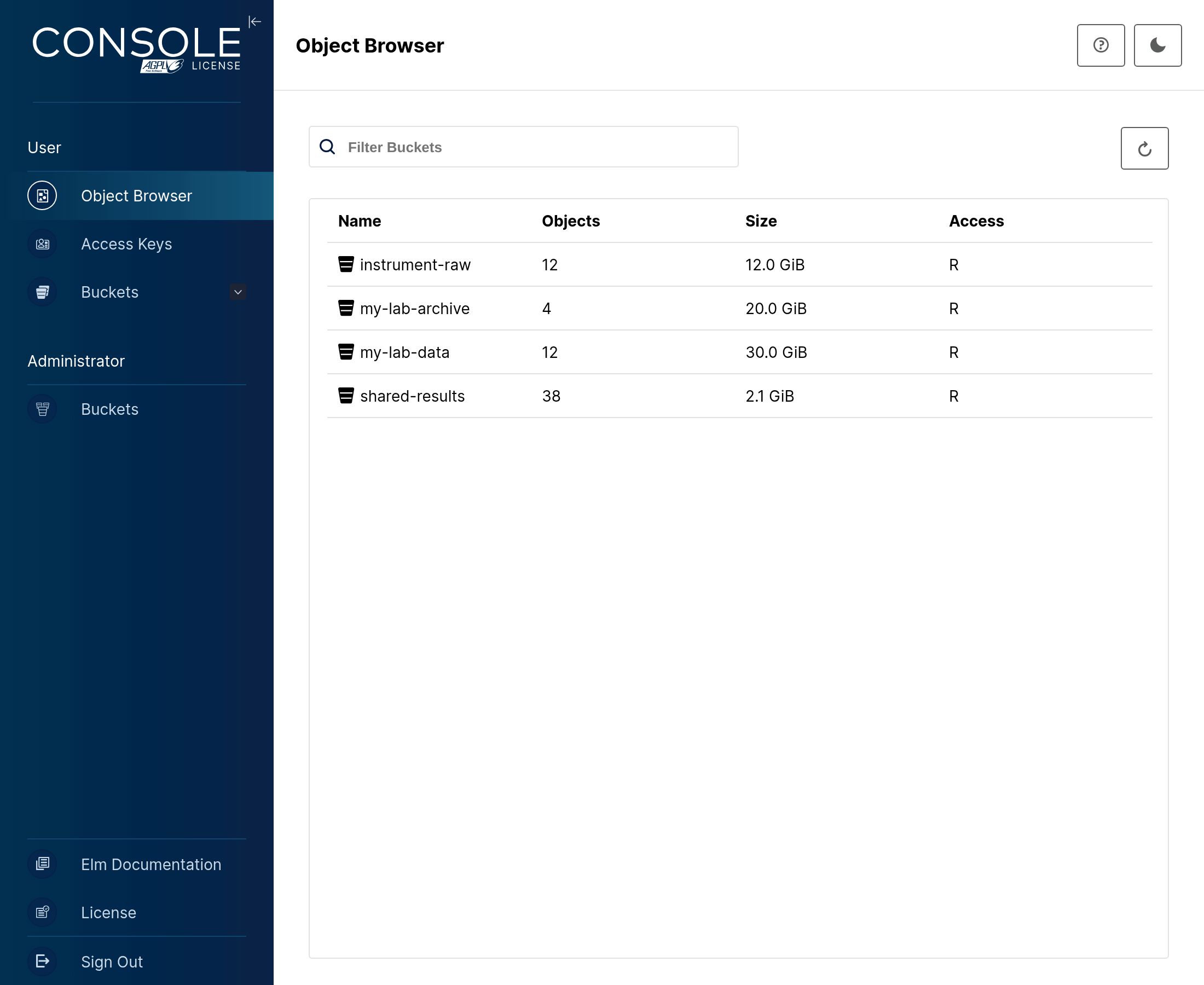
Owners of a dedicated Elm instance also see options for administering it.
MinIO Console Session Expiration
Sessions in the MinIO Console expire 12 hours after you sign in, and you will then need to sign in again.
While you can use the MinIO Console to manage objects in buckets, browsing and downloading objects, or managing objects if you are a member of an uploader or editor workgroup, the expectation is that most users will want to configure a local S3 client to manage the process of downloading and uploading objects. The advantage to using S3 is that it can be run from a terminal in the background, and that it won't time out after 12 hours.
S3 Client Setup#
S3 tools sign in with an Access Key / Secret Key pair rather than your SUNet ID. You create these in the Elm Service Accounts Manager.
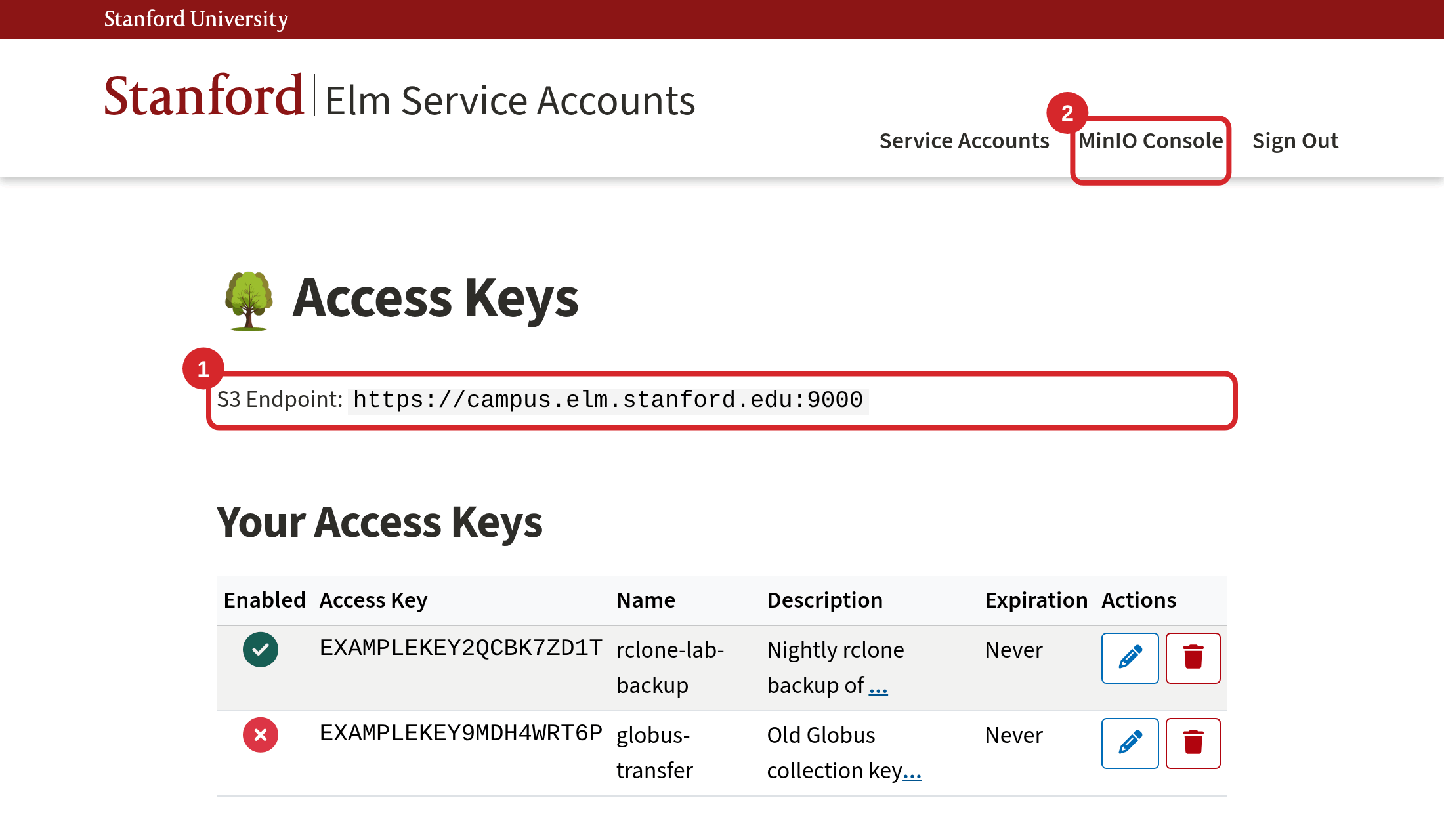
After you sign in you will see the Access Keys page. It shows the S3 Endpoint your tools connect to (1), the access keys you already have, and a form for creating a new one. The MinIO Console link (2) opens the MinIO Console in a new tab.
Creating an Access Key#
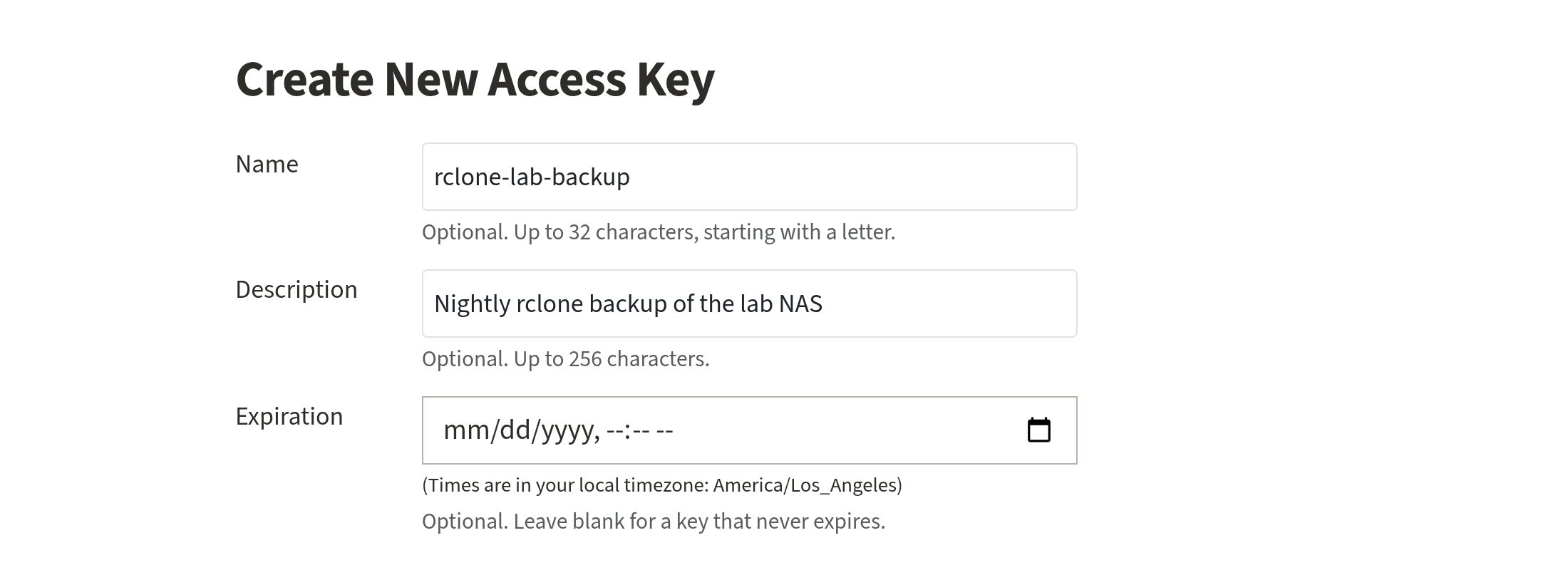
Fill in the form under Create New Access Key. All three fields are optional. A name and a description help you recognise the key later, for example by naming the tool or computer that uses it. An expiration date makes the key stop working at that time. Leave it blank for a key that does not expire.
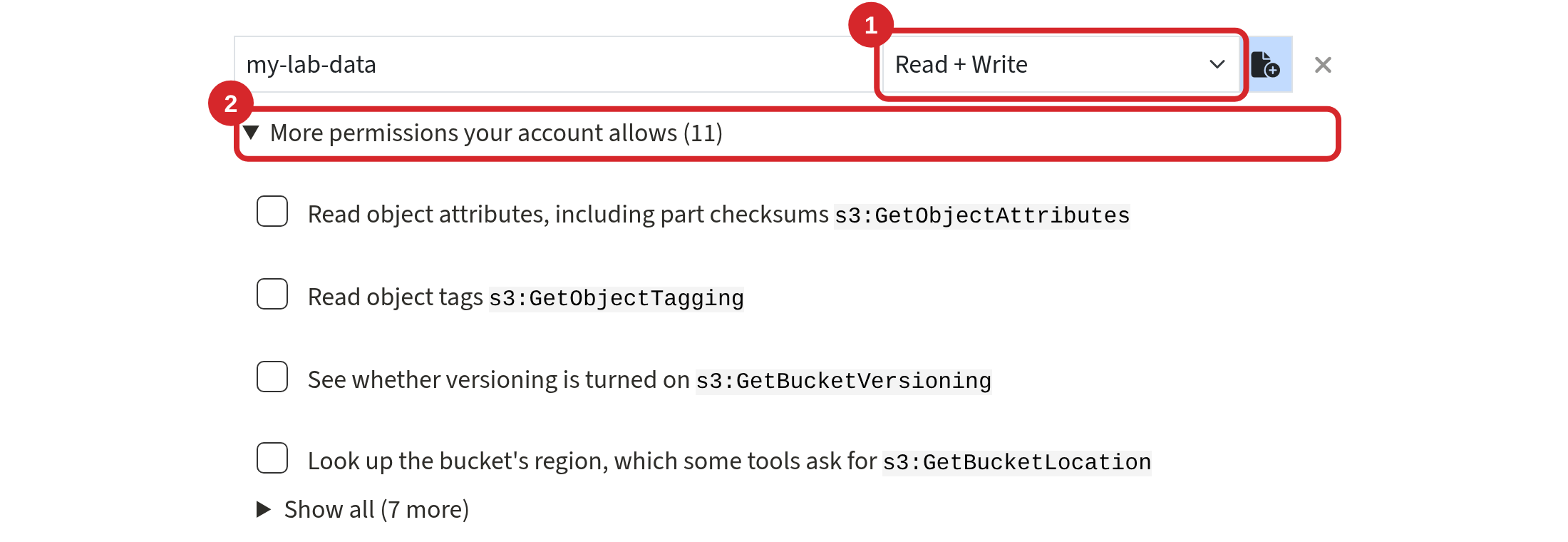
Below these fields, choose the buckets the key may use and what it may do in each. Type a bucket name or pick one from the list, then choose a permission level (1):
- Read-Only lets the key list and download objects.
- Read + Write also lets it upload objects.
- Read + Write + Delete also lets it delete objects.
Use Add Another Bucket to give the key access to more buckets. A key can never do more than your own account is allowed to do in a bucket.
Most keys need nothing more. If a tool needs a specific extra permission, such as reading object tags, open More permissions your account allows (2) and tick what it needs. The list shows only permissions your account has for that bucket.
If you would rather write the policy JSON yourself, turn off Use Generator and use Check against my permissions to find any part of it that your account does not allow.
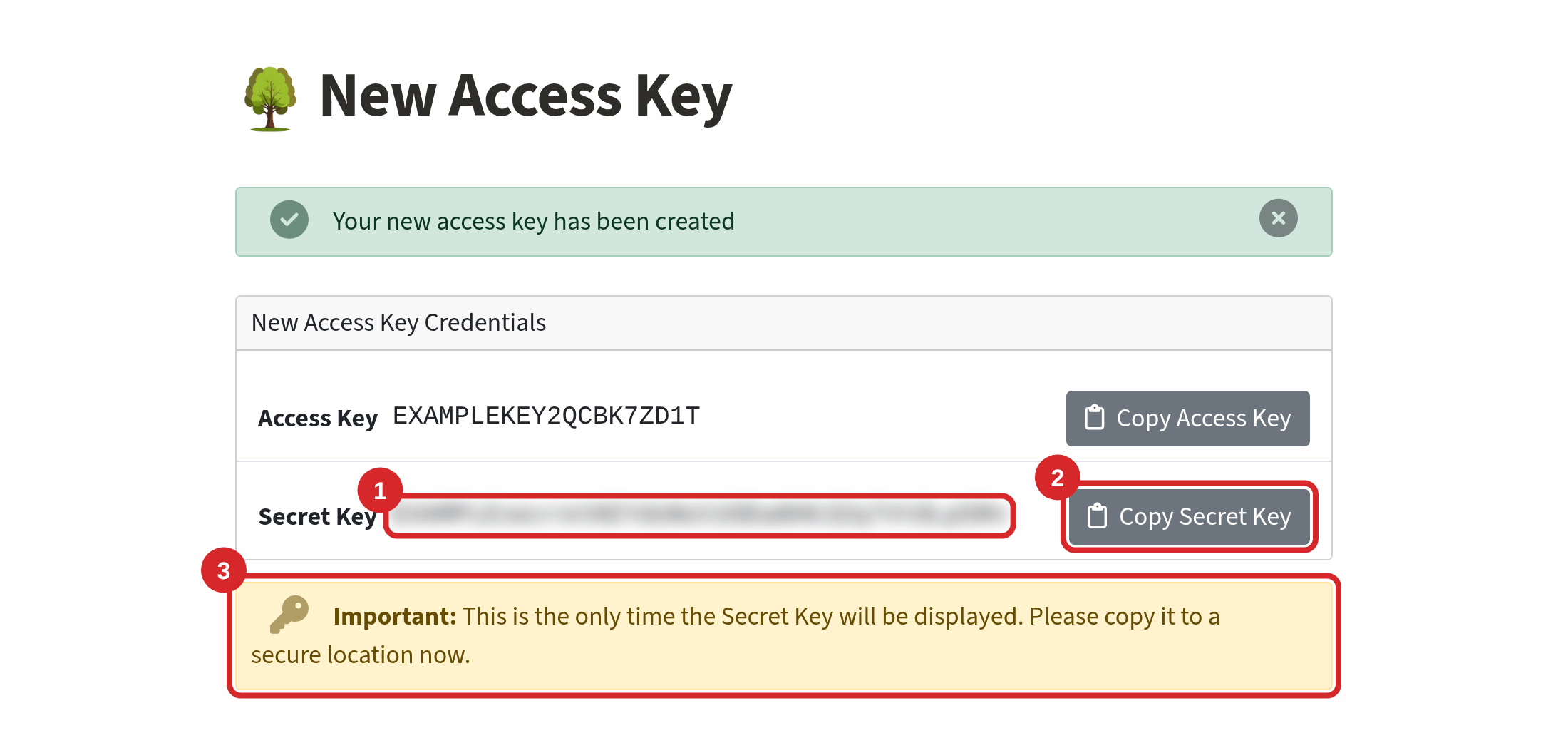
Click Create Access Key. The next page shows the new Access Key and Secret Key. The secret key is blurred until you click it (1). The copy button (2) copies it without displaying it. This is the only time the secret key is shown (3). If you lose it, create a new key and delete the old one.
Below the keys, the page shows ready-made settings for the AWS CLI, rclone and the MinIO Client with your new key already filled in. The setup instructions below use the same settings.
Changing or Turning Off an Access Key#
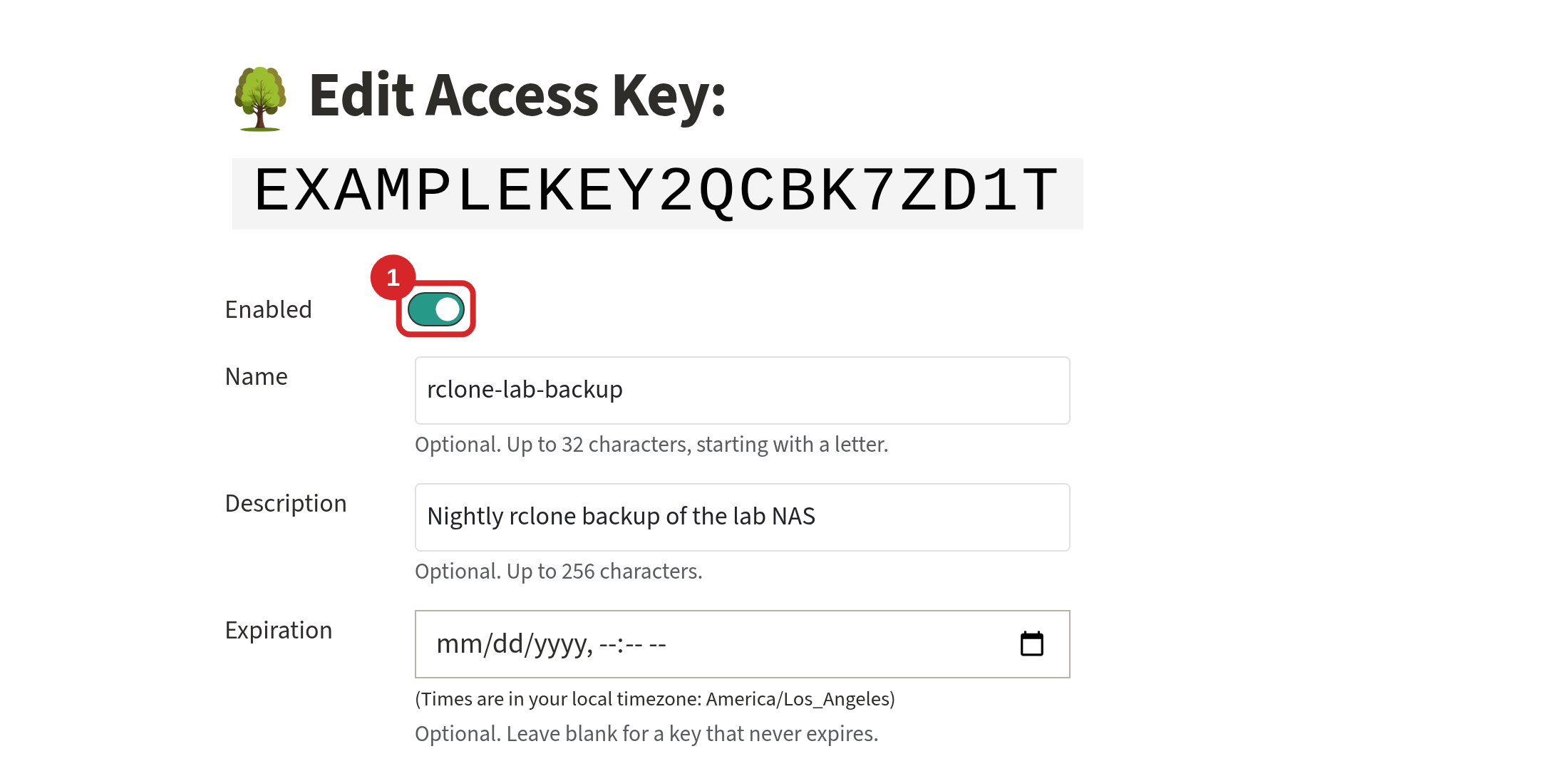
On the Access Keys page, click the pencil button next to a key to change its name, description, expiration or buckets. To stop a key working without deleting it, turn off Enabled (1) and save. Turn it back on to restore the key. The trash can button deletes a key permanently.
Access keys in the MinIO Console
The MinIO Console can also create and delete access keys, but it cannot change an existing key. Use the Elm Service Accounts Manager to change a key's buckets, expiration or whether it is enabled.
There are many S3 client options available, the ones we've tested are:
MinIO Client Setup#
5 GiB parts are required
Using a 5 GiB part size is mandatory on Elm. Elm refuses multipart uploads with smaller parts, because each part is eventually stored on tape.
The MinIO Client, called mc, provides the most feature compatible Elm client, as it's built by the same people who build the S3 service used by Elm.
mc can be installed on Linux, macOS, or Windows. The Quickstart guide offers directions on how to install the client on these platforms.
Add your Access Key / Secret Key pair to mc as an alias. For example, to add an alias named elm for https://campus.elm.stanford.edu:9000, give the alias name and the endpoint and leave the keys off. mc asks for them, and does not show the Secret Key as you type or paste it:
$ mc alias set elm https://campus.elm.stanford.edu:9000
Enter Access Key: EXAMPLEKEY2QCBK7ZD1T
Enter Secret Key:
Added `elm` successfully.
This keeps the Secret Key out of your shell history and out of the list of running commands that other users of a shared computer can see.
The Elm Service Accounts Manager also shows the same alias as an entry for the mc configuration file, ~/.mc/config.json, with your key filled in.
Elm requires multipart uploads to use 5 GiB parts. With mc put, add the --part-size flag:
$ mc put --part-size 5GiB file.dat elm/bucket/file.dat
mc cp and mc mirror have no such flag. Set this environment variable before using them instead:
$ export MC_UPLOAD_MULTIPART_SIZE=5GiB
$ mc cp file.dat elm/bucket/file.dat
AWS Command Line Interface Setup#
5 GiB parts are required
Using a 5 GiB part size is mandatory on Elm. Elm refuses multipart uploads with smaller parts, because each part is eventually stored on tape.
Please make sure to set the multipart_chunksize option to 5GiB in the AWS CLI configuration file, as shown below.
AWS Command Line Interface, called aws, is the official Amazon S3 client, and Elm ought to be fully compatible with it. To successfully get the AWS CLI working, you should select a minimum of AWS version v2.13.0 or newer of the module instead of the default version. Please note that version 2.27.49 is available on Sherlock.
aws can be installed on Linux, macOS, or Windows. The AWS CLI Getting Started guide provides directions on installing the client.
Set up a profile named elm in two files. The Elm Service Accounts Manager shows both with your key filled in. Add your Access Key / Secret Key pair to ~/.aws/credentials:
[elm]
aws_access_key_id = EXAMPLEKEY2QCBK7ZD1T
aws_secret_access_key = EXAMPLEsecretKEYdoNotUSEw8Hk3Zq7Vt0Lp5Rn
and add the Elm S3 Endpoint and the 5 GiB part size to ~/.aws/config:
[profile elm]
region = us-east-1
endpoint_url = https://campus.elm.stanford.edu:9000
s3 =
  signature_version = s3v4
  multipart_chunksize = 5GiB
Without endpoint_url, aws would try to connect to Amazon's S3 service instead of Elm. Use the profile with --profile elm, for example:
$ aws --profile elm s3 ls s3://bucket/
rclone Setup#
5 GiB parts are required
Using a 5 GiB part size is mandatory on Elm. Elm refuses multipart uploads with smaller parts, because each part is eventually stored on tape.
Please make sure to set the chunk_size option to 5Gi in the rclone configuration file, as shown below, or pass the --s3-chunk-size flag set to 5Gi.
rclone is another popular tool that offers some support for S3 services like Elm.
rclone can be installed on Linux, macOS, or Windows. The install directions provide sections that detail multiple ways to install rclone across each of those platforms.
Add a remote named elm to your rclone configuration file, which rclone config file will locate for you. The Elm Service Accounts Manager shows this remote with your key filled in:
[elm]
type = s3
provider = Minio
access_key_id = EXAMPLEKEY2QCBK7ZD1T
secret_access_key = EXAMPLEsecretKEYdoNotUSEw8Hk3Zq7Vt0Lp5Rn
endpoint = https://campus.elm.stanford.edu:9000
acl = private
chunk_size = 5Gi
copy_cutoff = 5Gi
no_check_bucket = true
no_check_bucket = true stops rclone from trying to create buckets, which your Elm instance administrators do for you. copy_cutoff = 5Gi does for copies made inside Elm what chunk_size does for uploads. With this remote in place, no extra flags are needed:
$ rclone copyto file.dat elm:bucket/file.dat

$ rclone copy ./dir/ elm:bucket/dir/
You can also create the same remote interactively with rclone config, choosing s3 storage and the Minio provider, then setting chunk_size, copy_cutoff, acl and no_check_bucket under Edit advanced config. If your remote does not set them, pass the equivalent flags on each command instead:
$ rclone --s3-no-check-bucket --s3-chunk-size 5Gi --s3-copy-cutoff 5Gi copy ./dir/ elm:bucket/dir/
Globus for Elm#
Globus is a data transfer and management service that simplifies the process of transferring large datasets across different storage systems, including cloud storage. Read more about Globus in general. Please refer to the S3 Client Setup section above to setup your Access Key/Secret Key pair to configure the Globus Connector.
Elm is an on-prem cloud-like service, and a Globus Mapped Collection using Globus S3 Connector is managed separately from Elm itself. For more information on setting up Globus and accessing your bucket on Elm, refer to https://globus.stanford.edu/cloud/elm.html
elm_archive#
elm_archive is a utility designed to facilitate the archival of data from Sherlock to Elm storage using Globus. In particular, this tool is useful for handling and packing many small files. For additional information on how to use elm_archive, review Archiving data to Elm from Sherlock.
For more information on how to use elm_archive, refer to https://docs.elm.stanford.edu/faq/#moving-data